
Create and share your Amazon wish list - how it works!
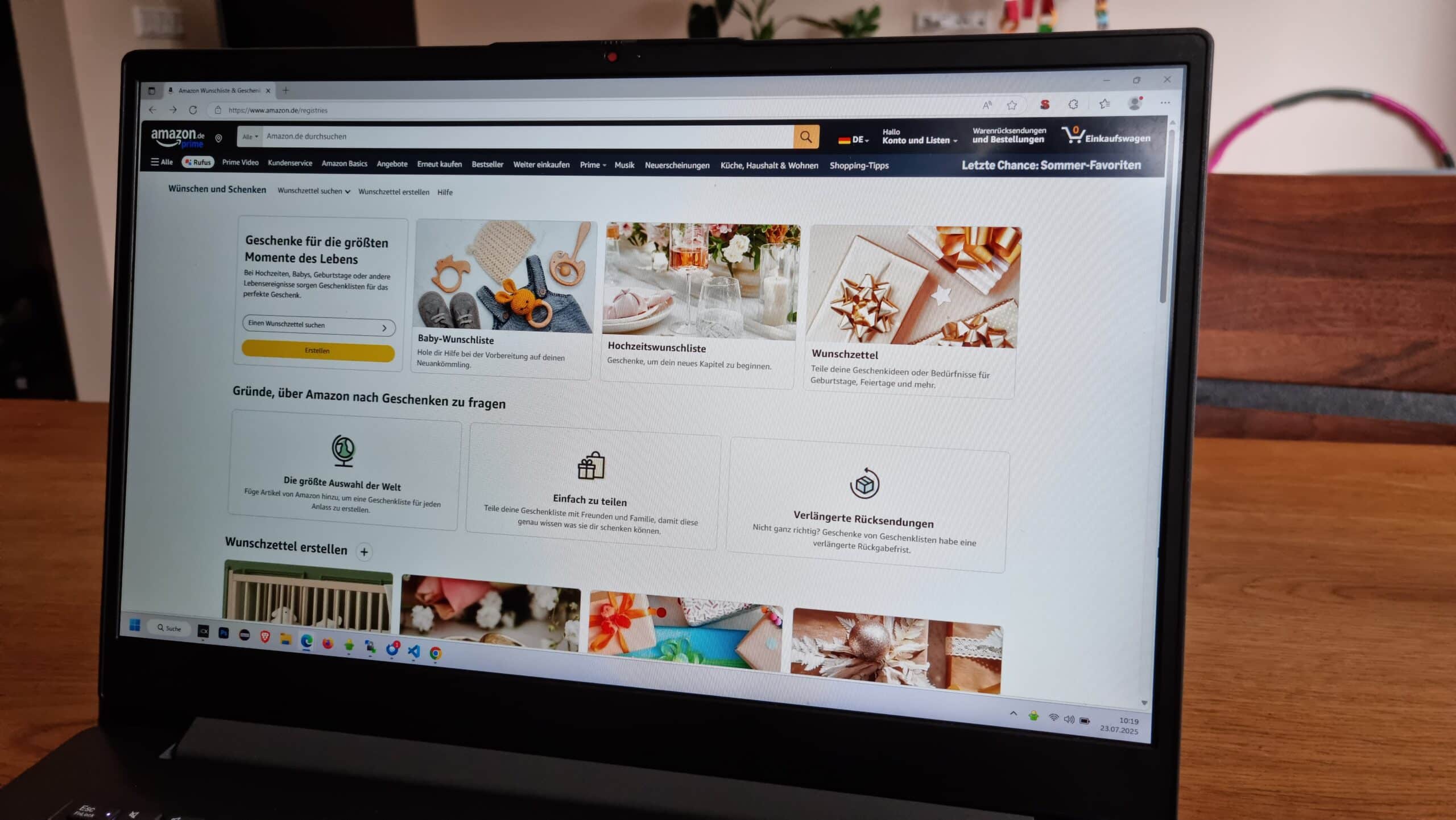
Photo: wisheezy; Website screenshot: Amazon.de
Quick guide
- Log in under "Account & Lists" → "My lists".
- Create and name the list.
- Set privacy and address in "Manage list".
- Add items via the product page.
- Share your list by sending a link.
- Activate "Don't spoil the surprise" so as not to reveal any gifts to yourself in advance.
You can find your wish lists at https://www.amazon.com/registries*
What is an Amazon wish list and what is it good for?
An Amazon wish list, also known as a "wish list" or "gift list", is your personal collection point for things that you would like to buy later or receive as a gift. The practical thing about it is that items automatically disappear from the public view as soon as someone buys them for you. This prevents duplicate gifts.
Typical scenarios are:
- Birthdays, Christmas, weddings, baby showers
- moving in, moving house, renovation, hobbies
- Community and streamer gifts or "Support my setup" lists
- Own shopping list for offers such as Prime Day or Black Friday
Understanding list types and privacy settings
You decide who can view or edit your list. When sharing, you can choose between viewing only (buy only) and editing together (edit and buy).
Address and data protection: Givers will only see your name, city and country. The street name and house number remain hidden.
With the "Don't spoil the surprise" option, purchased items are temporarily hidden from you. So you won't accidentally see what someone gives you.
Visibility options at a glance
| Setting | Who can see the list? | Editing possible? | Typical use |
|---|---|---|---|
| Private | Only you | No | Own watch list, deal tracker |
| Share via link (buy only) | All with the link (no search hit) | No | Wish list for friends or family |
| Share by link (edit and buy) | All with the link | Yes (by invitation) | Shared lists, shared flat or wedding list |
Step-by-step: Create a wish list on the desktop
- Log in, go to "Account & Lists" and select "My lists".
- Click on "Create list", enter a name and confirm.
- Customize settings via the three dots ("...") and "Manage list", including privacy, delivery address and the option "Don't spoil my surprise".
- Add items by selecting "Add to list" or "Add to wish list" on the product page. You can select the appropriate list or create a new one.
Wish list in the Amazon app (iOS and Android)
- Open the app and tap on the people icon at the bottom left.
- Select "My lists", here you can see existing lists or create a new one.
- Add products by selecting "Add to list" on the product page.
- Set comments and priorities conveniently on the go.
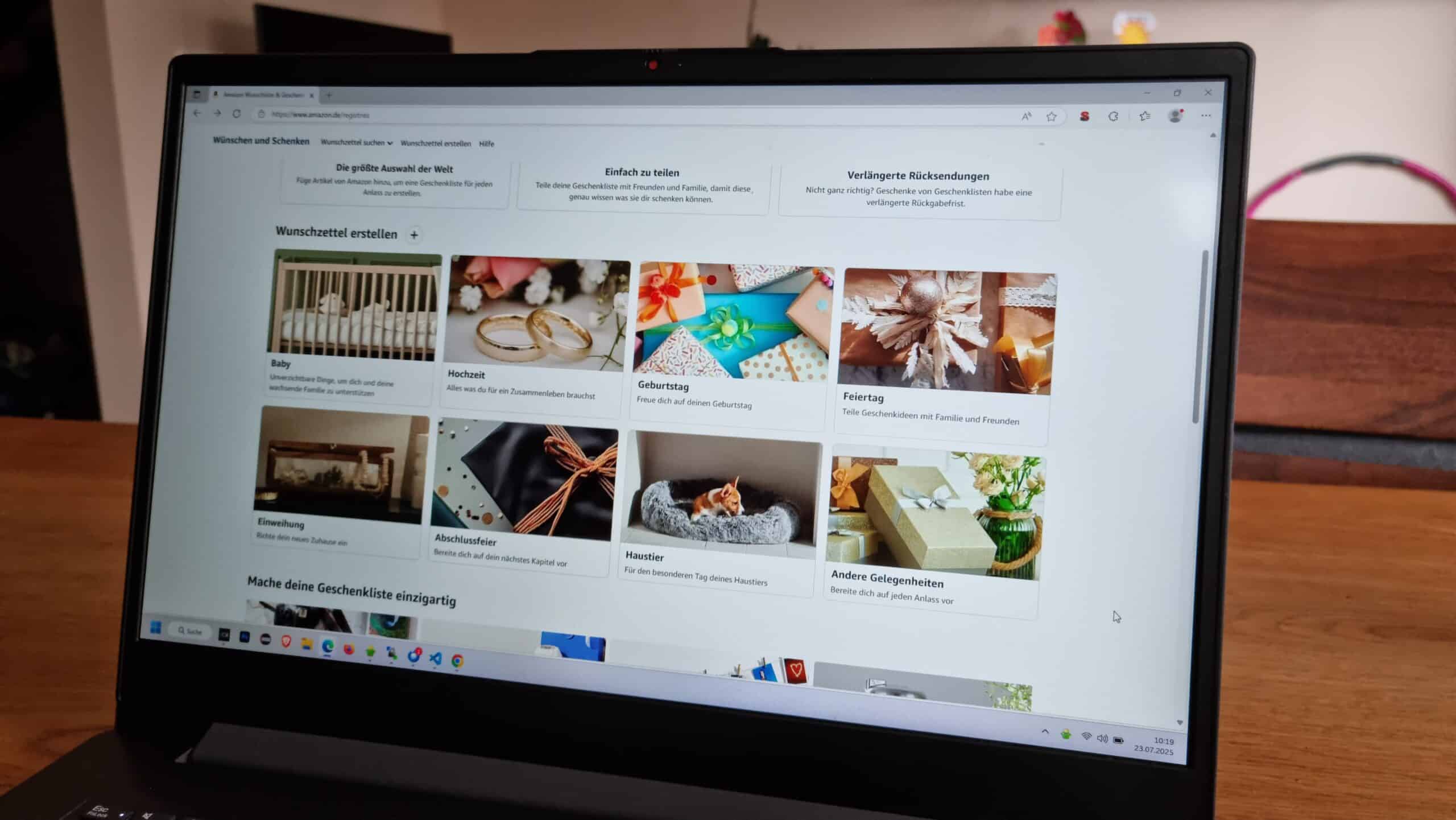
Photo: wisheezy; website screenshot: Amazon.de
Share Amazon wish list
Open your list and select "+ Invite" or "Share". You decide whether others are only allowed to buy or can also edit and buy. You will receive an invitation link that you can send via Messenger, email, social media or a QR code.
Further tips and best practices
To keep your Amazon wish list organized and make the most of it, follow these practical tips:
- Structure lists thematically, such as "Kitchen", "Gaming" or "Baby 0 to 6 months".
- Use priorities and notes to highlight particularly important items or specify sizes, color variants and alternatives.
- Activate push notifications for price changes in the Amazon app.
- Regularly check the correct delivery address, especially before events such as birthdays or weddings
- Archive older, seasonal lists by renaming or deleting them.
- Use Alexa to create lists or add items if you don't have a free hand at the moment.
Typical problems and quick solutions
Even when using an Amazon wish list, you may occasionally encounter minor difficulties. Here you will find quick solutions to the most common problems:
- If the link does not work or the list seems to have disappeared, check the sharing settings and generate a new link if necessary.
- If an incorrect delivery address appears, change it in "Manage list".
- If you don't want to see what has already been purchased, activate "Don't spoil my surprise".
- If an item is no longer available, add alternatives in the comments or adjust the priority accordingly.
Frequently asked questions
Can the giver see my exact address?
No, buyers only see your name, city and country.
Can I see who bought what?
Yes, by default, unless you activate the "Don't spoil my surprise" option.
What is the difference between the normal wish list and baby wish lists or wedding lists?
Baby or wedding lists offer special additional functions, such as checklists or thank you tracking. Normal wish lists are more universal.
Can I add items outside of Amazon?
This used to be possible with the "Amazon Assistant". Today, notes or external tools are possible alternatives.
Do purchased items disappear for good?
They are hidden or marked as purchased, but can be made visible again.
* Links marked with an asterisk are affiliate links. We receive a commission from the online store when purchases are made via affiliate links.